BubbleTea Multi-panel View
Adding Layouts to Bubbles
I’m combining what I had intended to be two different blog post on here. Part I, is an approach I tried to do using a 3rd party library that didn’t pan out, Part II is a more native approach. Feel free to skip ahead if you like but those are are following along on my journey let’s go see how this goes.
Part 1 - Multiple Panels Using flexBox
Note: This solution does seem to have a bit of a buggy behavior where the left and right panels seem to switch positions on me. I will write another tutorial using only bubbles/lipgloss coming soon.
Okay, so if you’ve followed my tutorial so far, we currently got to the point where we’re printing hello world and added some styling to the TUI. Even the most simple UIs typically have one or two panels that the user interacts with. Typically this is done with something like a layout manager in a GUI. There are several tutorials on this but none of the ones I’ve run into are particularly great, or at least they expect the developer to do a lot more than I would expect. aka. on window resize, you would need to calculate the window size to update the view as is appropriate.
Rather than doing than, I’d decided to use stickers a library that a component titled flexbox. A responsive components which dynamically gets resized as needed. It does everything I would want it to do for a layout manager without doing the silly math involved.
Model Composition
We’re going to do a bit of refactoring here and move things into a ‘tui’ package as well.
At this point in order to have two windows panes, what we need to do is establish a main model that contains the child models. We also need a way to track which component is selected.
We need to define a type to keep track of what panel is selected and we’ll use a map to keep track of the models.
type focusIndex uint

const (
	Main    focusIndex = iota
	Preview focusIndex = iota
)
In our case we’ll have two windows, one is going to be a preview window and the Main window we’ll use for user input. We’re going to rename our old model ‘greeting’ which will become our ‘Main’ window. We’ll all need to create a new ‘preview’ of our user input. One big change that you have to ensure is taken care of. The receiver for the struct has to be a pointer. So:
//Old Pattern
func (g greeting) Update(msg tea.Msg) (tea.Model, tea.Cmd) { }
func (g greeting) View() string {}
func (g greeting) Init() tea.Cmd {}
func NewGreetingModel(text string) greeting {
	return greeting{ }
}
//New Pattern
func (g *greeting) Update(msg tea.Msg) (tea.Model, tea.Cmd) { }
func NewGreetingModel(text string) *greeting {
	return &greeting{ }
}
func (g* greeting) View() string {}
func (g* greeting) Init() tea.Cmd {}
Now, that we need a state to be updated across models we need to be able to change the entity. So we need a pointer receiver rather than a pass by value.
greeting is essentially a simplified version of the model we were working with last time. So I won’t spend too much time on it. We’ll create a new struct that captures all the answers a user would enter. We’ll call it ‘Survey’ and can be seen below.
// Survey A simple questionnaire of data being asked for
type Survey struct {
	Name       string
	DOB        string
	Age        int
	Profession string
}
We’ll create a simple Survey with some default values that we’ll render as a yaml entity on the right hand side. We get back to the preview model shortly but for now let’s get the overall logic for main which drives the behavior.
Let’s update the root model with the new enums we’ve introduced:
type rootModel struct {
	flexBox      *flexbox.HorizontalFlexBox //layout manager
	paneSelected focusIndex // selected panel
	modelsMap    map[focusIndex]tea.Model // map of all bubble models
	answers      *Survey // struct with sample data
}
Okay now let’s fix the initialization:
func NewModel(text string) rootModel {
	srv := NewSurvey() // Returns some sample data
	modelsMap := make(map[focusIndex]tea.Model)
	mainModel := NewGreetingModel("Welcome to the Greeter Builder\n")
	previewModel := NewPreviewModel(&srv)
	modelsMap[Main] = mainModel
	modelsMap[Preview] = previewModel
	m := flexbox.NewHorizontal(0, 0)
        // define a set of columns for our horizontal layout and initialize them with the data from each model.
	columns := []*flexbox.Column{
		m.NewColumn().AddCells(
			flexbox.NewCell(1, 1).SetContent(mainModel.View()),
		),
		m.NewColumn().AddCells(
			flexbox.NewCell(1, 1).SetContent(previewModel.View()),
		),
	}
        //Add the columns.
	m.AddColumns(columns)

	return rootModel{
		flexBox:      m,
		paneSelected: Main,
		answers:      &srv,
		modelsMap:    modelsMap,
	}
}
So at this point we have two components a greeter and a preview. We created an instance of each and put them in a map. We additionally added their content to the given grid cell. The index of the component in the map matches the column index.
So, modelsMap[0].View() is equivalent to m.GetColumn(ndx).GetCell(0).SetContent(content)
Now, we need to address the update and view. Since we are using fluxbox, the view is super trivial
func (r *rootModel) View() string {
	return r.flexBox.Render()
}
The Update is a bit complicated though. Since we have multiple cmds that need to be sent for multiple models, we need to send them in ‘batches’. Additionally we need to address the window resize. and Update all components.
func (r *rootModel) Update(msg tea.Msg) (tea.Model, tea.Cmd) {
	var (
		cmd  tea.Cmd
		cmds []tea.Cmd
	)

	switch msg := msg.(type) {
	case tea.WindowSizeMsg:
		r.flexBox.SetWidth(msg.Width)
		r.flexBox.SetHeight(msg.Height)
	case tea.KeyMsg:
		key := msg.String()
		switch key {
		case "j": //testing model update
			r.answers.Age = 42
		case "tab":
			r.paneSelected = (r.paneSelected + 1) % 2
		case "ctrl+c", "esc":
			return r, tea.Quit
		}
	}

	ndx := 0
	//Update all models
	for _, val := range r.modelsMap {
		_, cmd = val.Update(msg)
		if ndx == int(r.paneSelected) {
			content := activeStyle.Render(val.View())
			r.flexBox.GetColumn(ndx).GetCell(0).SetContent(content)
		} else {
			r.flexBox.GetColumn(ndx).GetCell(0).SetContent(val.View())
		}
		cmds = append(cmds, cmd)
		ndx++
	}
	return r, tea.Batch(cmds...)
}
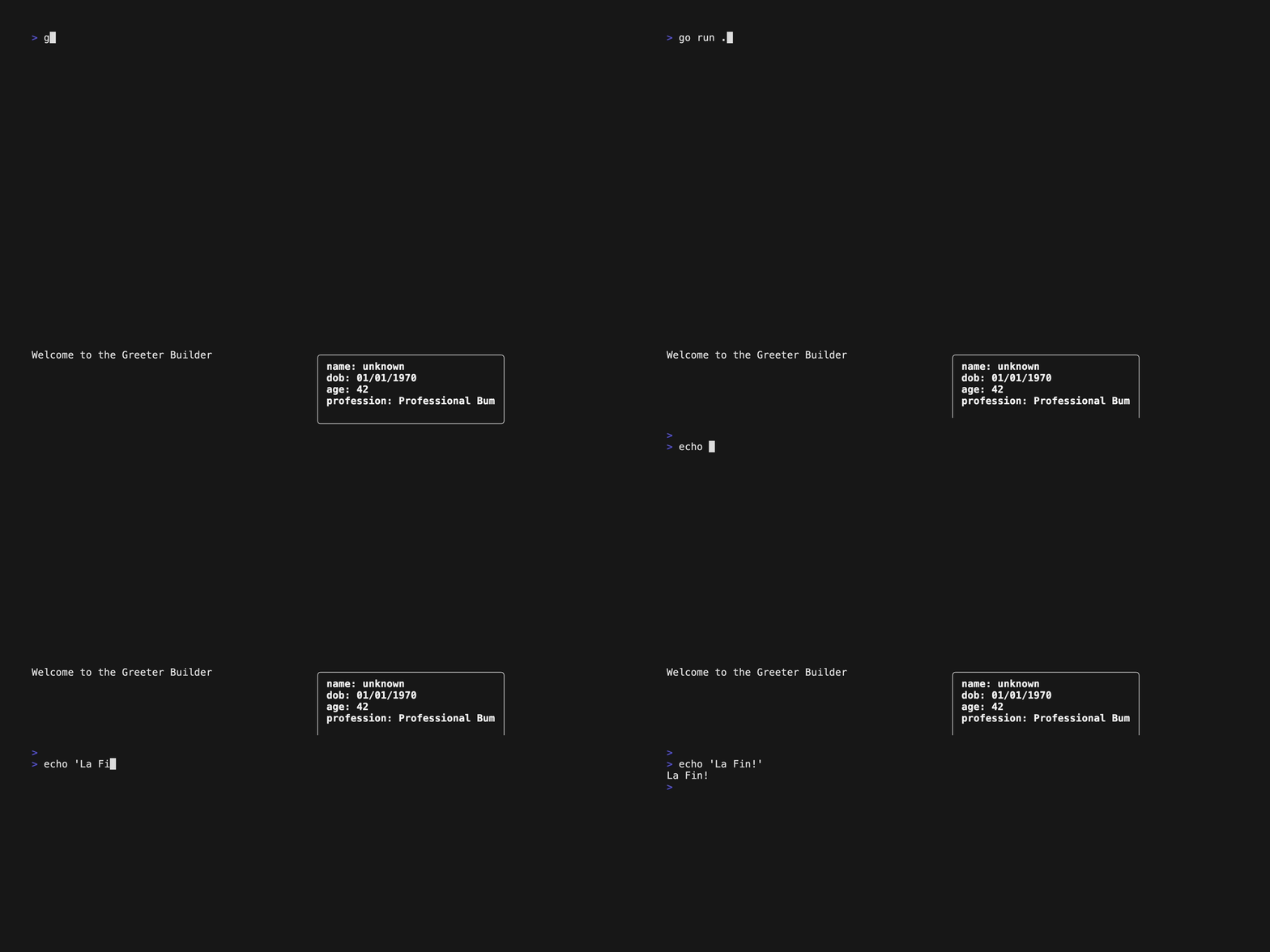
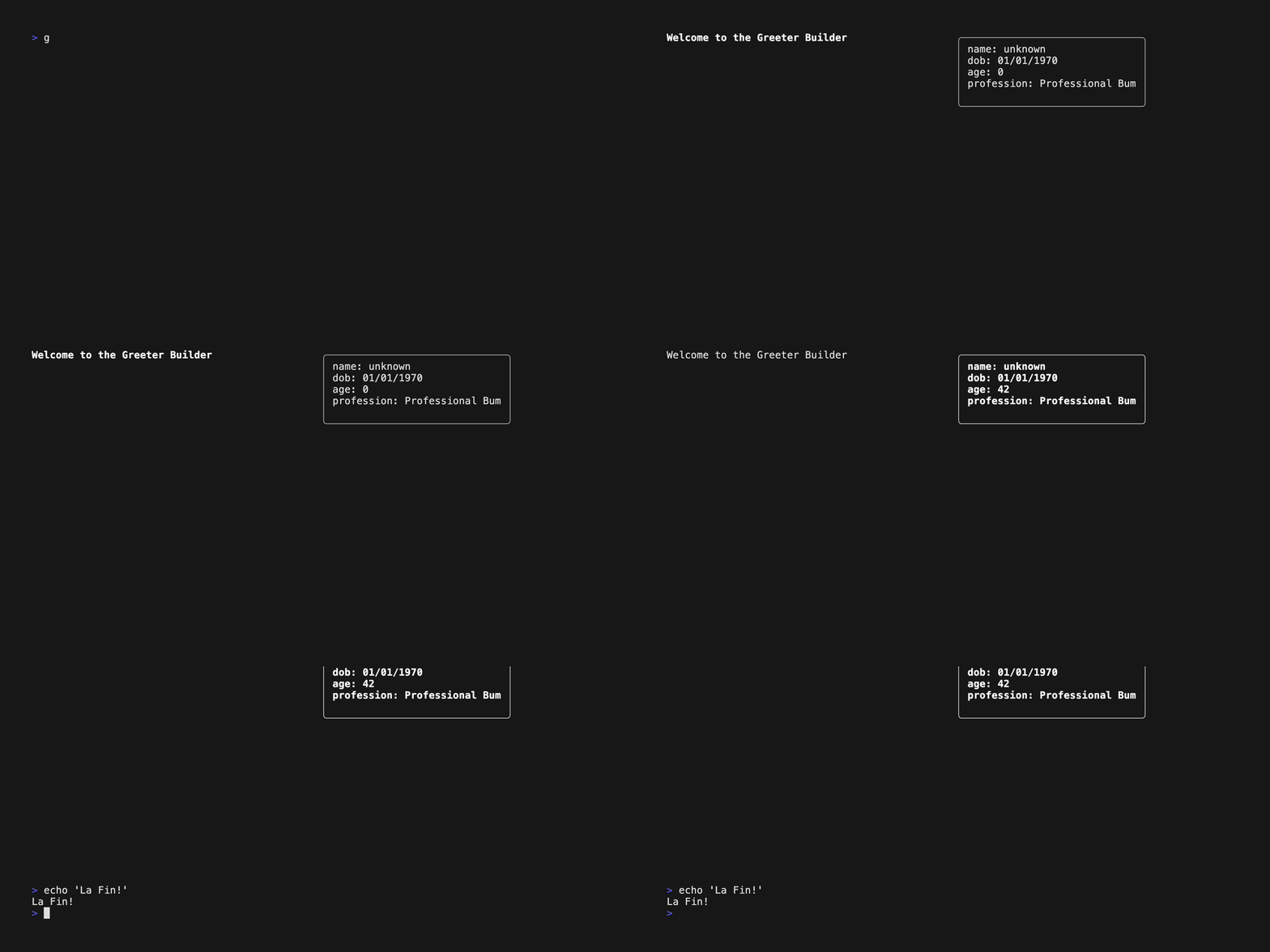
At this point if you press tab the selected panel will change. The panel selected has an ‘activeStyle’ applied to it. Additionally when the user hits ‘j’ the age will be set to 42. We’re simply ensuring that we can update the behavior in one panel and have it be reflected in the preview panel.
You can see the full code for the main_model here.
All that’s left is for us to create the Preview Model
Preview Model
In the root model we get a simple Survey reference but we want to keep that reference so that if the value changes in the greeter, it should also be reflected in the preview window.
So the preview really is pretty simple, it’s the Survey reference and a string representation of it.
type preview struct {
	survey  *Survey
	content string
}


func NewPreviewModel(srv *Survey) *preview {
	content, err := yaml.Marshal(srv)
	if err != nil {
		panic(err)
	}
	return &preview{
		survey:  srv,
		content: string(content),
	}

}
The rest of the code is pretty simple. The view simply returns object.content with some styling.
The update is a bit more complicated but mainly we’re just re-rendering the yaml representation on any key press
func (p *preview) Update(msg tea.Msg) (tea.Model, tea.Cmd) {

	switch msg := msg.(type) {
	case tea.KeyMsg:
		if k := msg.String(); k == "ctrl+c" || k == "q" || k == "esc" {
			return p, tea.Quit
		} else {
			//Update model
			content, err := yaml.Marshal(p.survey)
			if err != nil {
				panic(err)
			}
			p.content = string(content)
		}
	}

	return p, nil
}
That should be it, here’s the final end result can be seen here.
Part 2 - Working Version!
Remember in the first post I made about this topic how you’re supposed to unlearn all the patterns you’ve previously learnt? Yeah… I should listened to myself. Anyways. So the whole FlexBox thing didn’t work out and I ended up opening a bug report about it.
Let’s try to get away from 3rd party layout managers and go back to bubbletea. We tried to create a multi-panel view using stickers. I also keep on unintentionally typing lipstick instead of lipgloss (Most of which I think I fixed). Maybe I’m just thinking of putting lipstick on a pig for some reason? If you see lipstick, I mean the lipgloss library.
Okay, so last time we relied heavily on flexbox to manage the height etc. So instead let’s try doing something else without relying on flexbox.
We still need to manage to keep track of the screen size. Flexbox just ‘figured it out’ for us. So if you have a more complex configuration the math gets a bit annoying. For now, we’ll stick to our 2 panel view so let’s update our application. First we’ll introduce a screen width element. We also removed all references to flexbox.
All the changes are in the root_model.go which keeps things simple.
type rootModel struct {
	screenWidth  int
	paneSelected focusIndex
	modelsMap    map[focusIndex]tea.Model
	answers      *Survey
}
We’ll end up using the lipgloss styles to set with width, so we’ll add a nostyle variable as well.
noStyle = lipgloss.NewStyle()We’ll have to fix the Update method to set the screenWidth but for now let’s have a look at the view. We’ll apply a given style to the view depending on the ‘active’ panel.
func (r *rootModel) View() string {
	windowSize := r.screenWidth / 2 // Calculate the size of each panel
	leftView := r.modelsMap[Main].View()
	rightView := r.modelsMap[Preview].View()

        // apply style
	if r.paneSelected == Main {
		leftView = activeStyle.Width(windowSize).Render(leftView)
	} else {
		leftView = noStyle.Width(windowSize).Render(leftView)
	}

	if r.paneSelected == Preview {
		rightView = activeStyle.Width(windowSize).Render(rightView)
	} else {
		rightView = noStyle.Width(windowSize).Render(rightView)
	}
	return lipgloss.JoinHorizontal(lipgloss.Left, leftView, rightView)


}
So, the important parts are in bold. Each lipgloss style sets a max width which makes the rendering fit the width of the screen. No matter if we want to apply a style or not, we used the style to fix the rendering behavior.
Update the Update:
Now we need to the update function. It’s actually simplified a good bit.
func (r *rootModel) Update(msg tea.Msg) (tea.Model, tea.Cmd) {
//...more code above
Block1:
switch msg.(type) {
	case tea.WindowSizeMsg:
		r.screenWidth = msg.Width
		cmds = append(cmds, tea.ClearScreen)

}
Block2:
	//Update all models
	for _, val := range r.modelsMap {
		_, cmd = val.Update(msg)
		cmds = append(cmds, cmd)
	}
}
I added two go labels to the code so I can reference the code snippet. You don’t need to include them in your code.
In Block1 we simplified the logic and are only capturing the screen width. msg also has the height if it’s needed for calculations but for now we’re only concerned with the width. We’re also adding the ClearScreen command to reset the terminal when resizing the window.
Block2 used to do more in the previous version, like setting the content on the given column. In this case we only need to ensure that Update is invoked on sub components and send the commands as batch operations. That’s it.
Now, if anyone knows how to reset the view without the print statement that would be great. That’s a terrible pattern and won’t work on windows.
That concludes my how to create a two panel view for a simple bubble app. Next we should actually do something with this app besides change the styling and setting the user’s age to an arbitrary value.