Keyboard Layouts Fun
This WILL probably be the longest blog I’ll ever write. Not because I intend to write a 100 page dissertation but because I’m writing this entire post using the new keyboard I’ve selected. I imagine this might come off a bit terse but we’ll see. I decided to give myself this challenge as a way to confirm that I’m ready to switch off from QWERTY or throw this keyboard against the wall in frustration. This post will likely take a good bit longer mainly because I dropped from my perfectly respectable 80-90 WPM to something closer to 20-30 WPM. At the time I’m writing this article 30 is a very generous estimate. I’m also, not sure why but my proficiency on Monkey Type (a website to help you to learn how to type and measure your typing speed) is different from my ability to type on here. So, this is going to be my new tying teacher.
Okay, I’m getting ahead of myself. We need to explain a few concepts, first!
What are keyboard layouts?
Essentially it’s the way the keyboard is setup for you when type. Most people in the US typically use a QWERTY keyboard. If you live oversees, you might be a bit more familiar with AZERTY or an equally odd named layout. Most of the common ones tend to be a bit dated. QWERTY especially was initially designed to type on type writers. As you can imagine a bit has changed since then.
The main reason I’m trying to learn this is to reduce the strain on my hands. I had a choice between a new layout and / or a new fancy keyboard. They are both rabbit holes once you start exploring. The layout are a lot cheaper though a lot more abusive towards the user I suppose. It can also be very mentally exhaustive. You’ve been warned.
There is also an obvious downside that the layout on most keyboards you will use in the future will be completely different from the one you will be learning.
The Classic Contenders
The biggest issue I have when learning a new layout is the time commitment you will need to put into it. No matter which one you end up choosing, it’ll take a really long time to get decent at any one of them.
You of course try out a new one every week or so, it’ll get very confusing and frustrating to keep switching. You will also not be giving any of these layout a fair chance to fail or succeed.
- Dvorak is as old as it is annoying to type. This was the fist layout I tried to use. It immediately feels more comfortable than the standard layout. I could tell right away that I am no longer reaching keys the way I used to. The downside with any new layout you’re learning is that you’re fighting against the grain so to speak. All your muscle memory is screaming at you to go the other way. That took some getting used to.
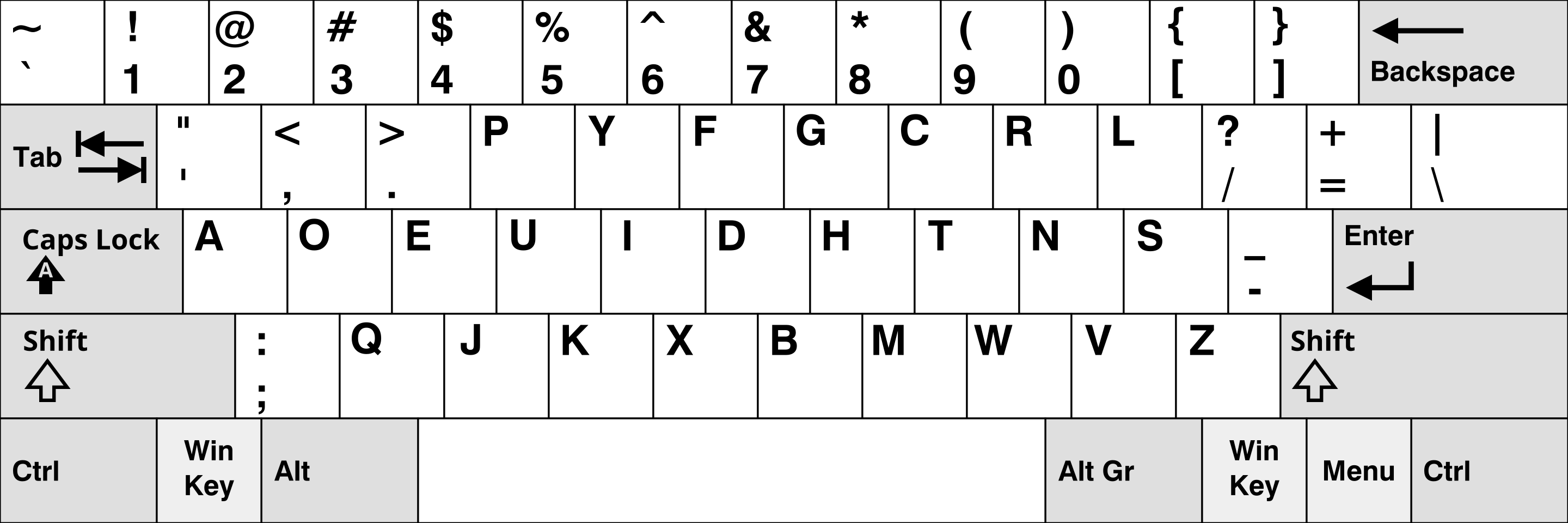
Thoughts: I'm not sure if it’s the fact that I’m left handed or something else that bugged me. The location of the ‘S’ key was really hard to get used to. It’s a relatively popular letter to type in english and I really didn’t like the location. This might be a perfectly good choice to use, but if you are starting fresh, I would personally try something a bit more modern.
Learning Resources:
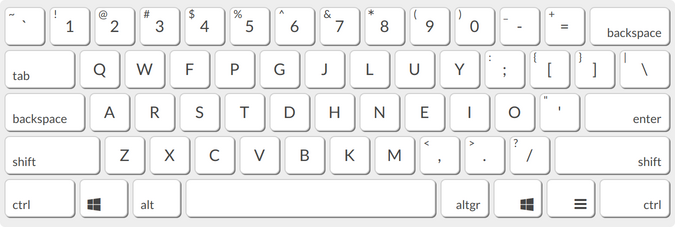
- Colemac / Colemac DH was my second attempt at this. This was what people generally call a “rolling” type of layout. It’s hard to really explain but you create a rolling motion with your hands at your typing. I probably didn’t give this its fair shot. I didn’t spend enough time to really do it justice. My biggest beef with it was that the letters just felt too crowded. Especially using my right hand.
The E U I O in general just felt odd and hard to get used to.
Learning tools:
- https://learn.dvorak.nl/
- https://www.colemak.academy/
- https://www.edclub.com/library/colemak
There’s also a variety of layout that help you transition away from QWERTY towards Colemak. This layout is probably the easiest to learn IMO.
The Tarmak layout are essentially designed to limit the changes with each transition, but personally I would much rather just learn something once.
So, the first two contenders didn’t work out. The next past deals with more modern ones.
Modern Contenders
My annoyances with Colemak led me to try to find a alternating keyboard. I wanted something with a good balance between the two hands. I also wanted to try to avoid pinky pressure from Dvorak.
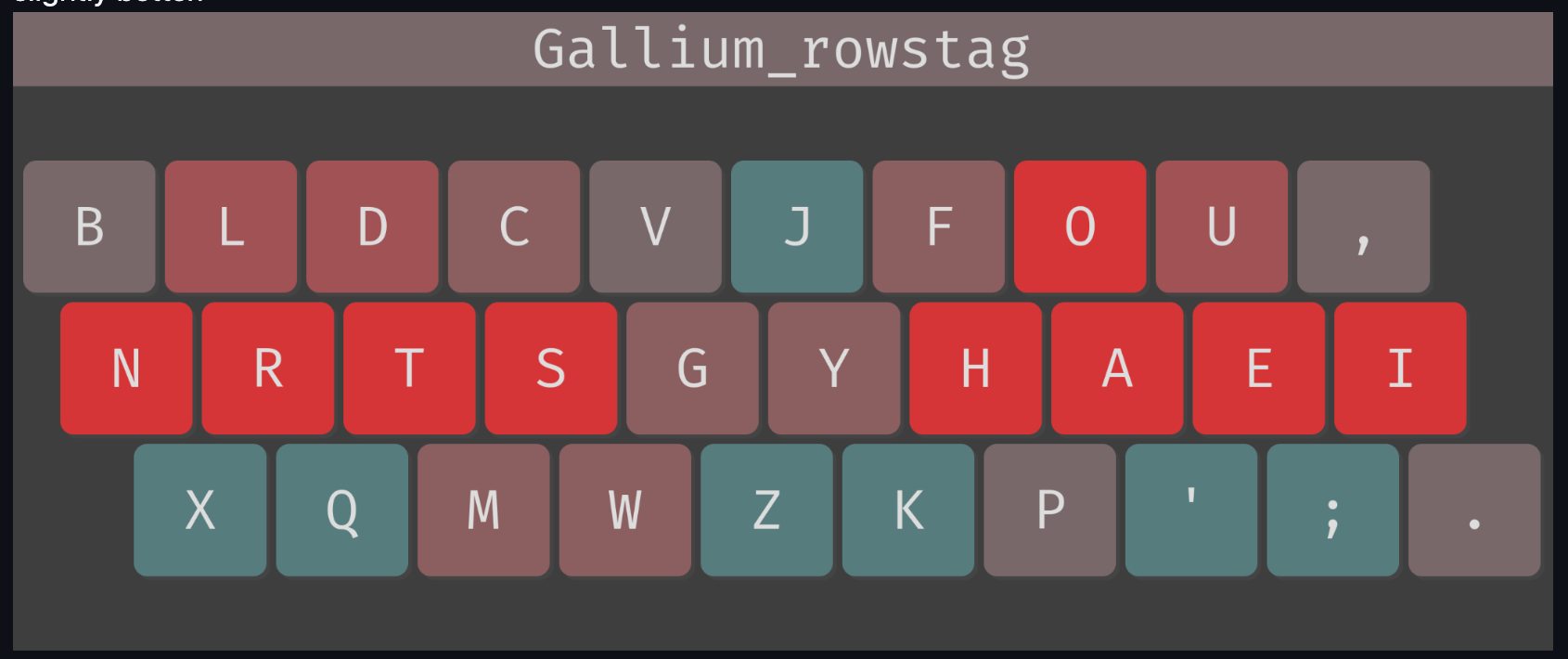
I ended up learning the rowstag version above. It felt a lot nicer than anything else I’ve tried so far. I can definitely feel how balanced it is. I didn’t like the comma placement but otherwise it was okay.
It was the one I’ve used the longest of the bunch. I kept on wondering if I should have given Colemak a bigger chance. I really didn’t have much of an issue with it. If my current choice doesn’t work out, I’ll probably revisit that.
Sturdy - This was recommended to me as a good modern rolling layout. Like all layouts it has something a bit goofy. In this case its the period.
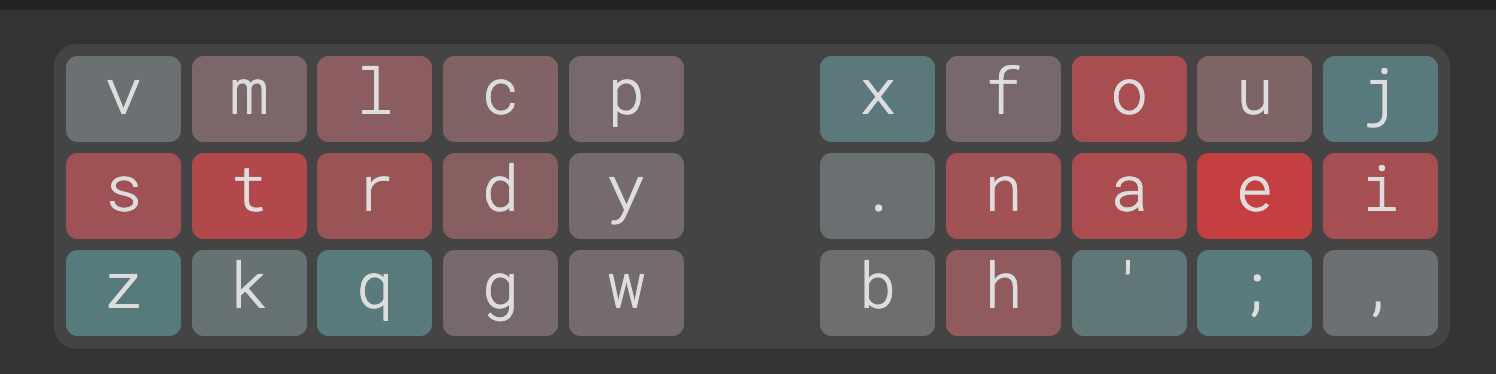
I think at this point I have to recognize that I was trying to over-optimize and kept on changing my mind. At the end of the day, any choice made is better than your stock default layout.
It also really does take a good while to build muscle memory.
Oh, something else I should call out, once you go beyond the popular choices you’ll have a much harder time finding learning guides. I ended up simply using Monkey Type to teach myself. It’s very nice and lets you customize which keys it uses to create its word set.
The quotes are especially nice to practice on.
What are your thoughts, do you have a favorite layout that you really like?
Resources:
- Monkey Type - Is my favorite typing tool that I used. I eventually moved away from typing tutors and simply used it to teach myself to use my new layout.
- Ed Club - is interesting. It got me stated on my typing journey but I found it a bit limited if you go beyond the standard layouts like: Colemak and Dvorak.